Inviting and Managing Household Members
Invite someone by email or shareable link, choose their role, and troubleshoot joining your household.
Before You Start
These steps describe the web app, which you can also open in your phone's browser. The mobile app's screens may use different labels.
The Household plan includes two member seats: the owner and one Partner or Member. The invited person does not need a separate paid subscription for household access. Viewers do not use a member seat.
If you have not set up a household yet, follow Creating a Household.
Open the Invitation Form
- Sign in to the web app.
- Choose Household in the main navigation, then Manage Household. You can also open household management directly.
- Select your household under Your Households, if needed.
- Check Member Usage. For example, 1 / 2 means one member seat is available.
- In Members, select Invite Adult. This opens Invite Adult Member.
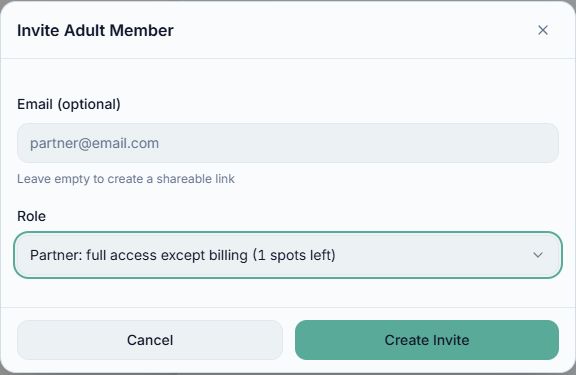
Actual staging test: Partner selected with one member seat available. The email field is empty; the grey email is placeholder text. The form initially defaults to Viewer.
Choose Email or a Shareable Link
Send an email invitation
- Enter the person's full email address in Email (optional). A name by itself is not an email address.
- Choose their Role. The form starts with Viewer, so change it if you want them to edit shared finances:
- Partner: co-manages household finances; billing remains with the owner.
- Member: can edit shared transactions.
- Viewer: view-only access, with notes where available.
- Select Create Invite.
- Read the delivery message before closing the form.
Invite email accepted for delivery means the email provider accepted the message. It does not guarantee that it reached the inbox; the recipient may need to check junk or spam.
An invitation addressed to an email must be accepted while signed in to a NivoaFlow account with that same email address. Copying its link does not remove this restriction.
Share the link yourself
- Leave Email (optional) completely blank.
- Choose the person's Role and select Create Invite.
- Select Copy Invite Link and send it privately through your preferred messaging app.
No email is sent for a blank-email invitation. This link is not tied to a particular email address: share it only with the person you want to join, and do not post it publicly.
Each invitation is single-use and expires after seven days. Save the link before closing the form if you plan to share it yourself.
Accept an Invitation
- Open the link in the invitation email or private message.
- Select Sign In or Create Account. For an emailed invitation, use the email address that received it and complete any account verification requested.
- Return to the invitation link after signing in if necessary.
- Review the household name, sharing information, Terms and Privacy Policy. Check Signed in as; use Switch account if it shows the wrong email, then reopen the link.
- Select Accept & Join Household.
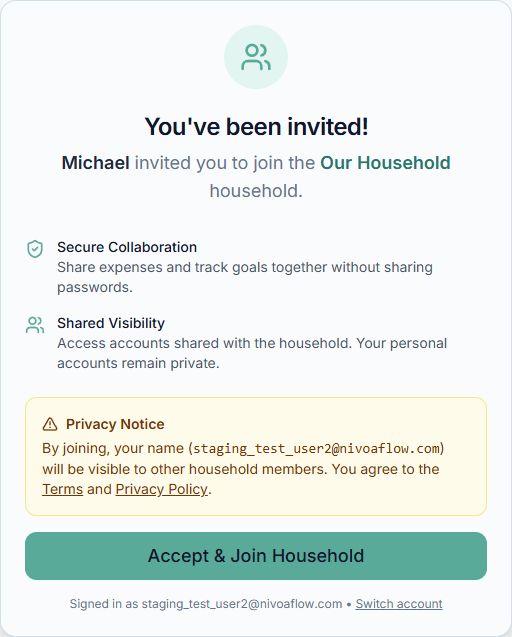
Actual acceptance screen from a staging test account, using sample household members. No customer information or invitation token is shown.
After joining, check that the person appears in Members with the intended role. Personal accounts remain private until their owner chooses to share them. See Sharing Accounts with Your Household.
Seats are checked when the invitation is accepted. If both member seats are already occupied, a Partner or Member invitation can join as a Viewer instead. Check Member Usage and the assigned role before assuming editing access is available.
If the Invitation Does Not Work
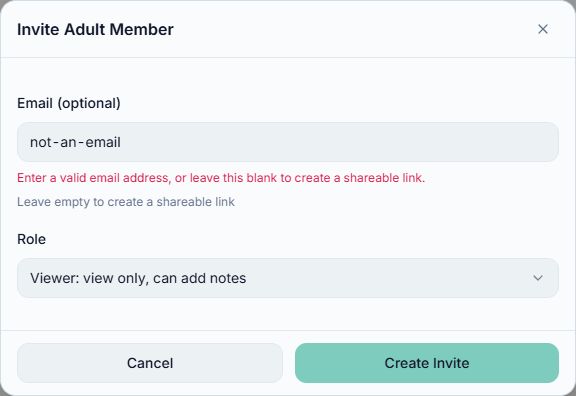
An incomplete address is rejected before an invitation is created.
| What you see | What to do |
|---|---|
| An invalid-email message | Enter the full email address, or clear the field completely to create a shareable link. |
| We couldn't send the email | Use Copy Invite Link to share it privately. If you entered an email, the recipient must still sign in with that address. |
| Delivery could not be confirmed | Share the link directly; do not assume an email arrived. |
| Email accepted for delivery, but no message arrived | Ask the recipient to check junk or spam. You can share the same link directly if you saved it. |
| The invite was sent to a different email address | Sign out or switch accounts, sign in with the invited address, and reopen the link. |
| The address on the invitation is wrong | Do not forward that addressed link to someone else. Contact support@nivoaflow.com to invalidate it, then create a new invitation with the correct address. |
| The link is invalid, expired or already used | Ask the inviter to create a new invitation. A used link cannot admit another person. |
| An older invitation used a name instead of an email | Create a new invitation with a full email address or leave the field blank. The old invitation cannot be repaired by forwarding its link. |
| Too many invitations | Wait before retrying, or contact support if you need help clearing old invitations. |
The current web screen does not include a Pending invitations list or Resend/Revoke buttons. If you need an outstanding link invalidated, contact support. Avoid repeatedly creating invitations while troubleshooting.
Manage Members After They Join
The Owner can use the menu next to another person in Members to change their role or choose Remove. Removing someone ends their household access; it does not delete their personal account. Members can request to leave through Leave Household. If the confirmation does not complete, ask the owner to remove you or contact support@nivoaflow.com. The owner cannot remove themselves through the member menu.
If the person is listed as a Viewer but should be a Partner or Member, check for a free member seat before changing their role. See Household Seats and Billing.